Pairing and connecting with an Android smartphone
The operation to register the device that you wish to connect to is called “pairing”. First, pair a device to use it with the headset for the first time.
Before starting the operation, make sure of the following:
- The Android smartphone is placed within 1 m (3 feet) of the headset.
- The headset is charged sufficiently.
- The operating instructions of the Android smartphone is in hand.
-
Remove both units of the headset from the charging case.
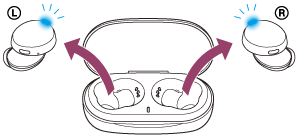
The headset turns on automatically. Check that the indicators (blue) flash.
-
Enter pairing mode on this headset.
When you pair the headset with a device for the first time after purchase or after initializing the headset (if the headset has no pairing information), the headset enters pairing mode automatically if you remove the headset from the charging case. In this case, proceed to step 3.
When you pair a second or subsequent device (the headset has pairing information for other devices), press and hold the buttons on both the left and right units for about 7 seconds.
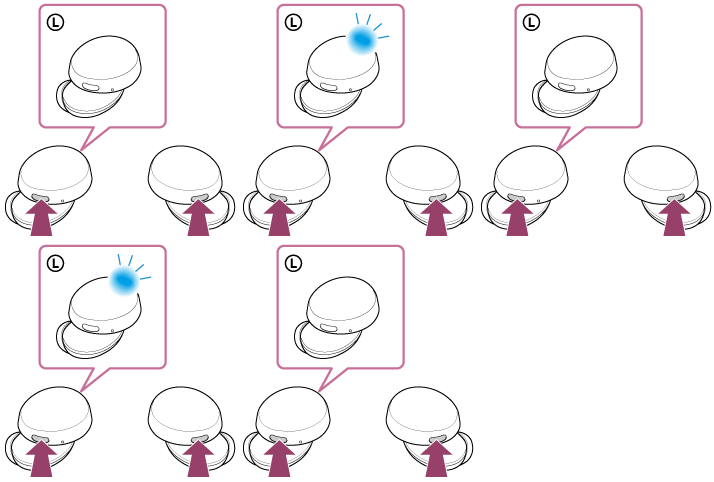
Check that the indicator (blue) on the left unit of the headset repeatedly flashes twice in a row.
You will hear the voice guidance say, “Bluetooth pairing”, from the left unit of the headset.
-
Unlock the screen of the Android smartphone if it is locked.
-
Find the headset on the Android smartphone.
- Select [Settings] - [Device connection] - [Bluetooth].
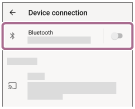
- Touch the switch to turn on the Bluetooth function.
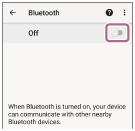
- Select [Settings] - [Device connection] - [Bluetooth].
-
Touch [WF-XB700].
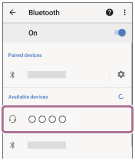
If Passkey (*) input is required, input “0000”.
The headset and smartphone are paired and connected with each other.
You will hear the voice guidance say, “Bluetooth connected”, from the left unit of the headset.
If they are not connected, see “Connecting to a paired Android smartphone”.
If [WF-XB700] does not appear on the Android smartphone screen, try again from the beginning of step 4.
*A Passkey may be called “Passcode”, “PIN code”, “PIN number”, or “Password”.
https://helpguide.sony.net/